ConstraintLayout 디버깅은 속성을 많이 외우는 문제라기보다, 지금 어떤 제약 구조가 깨졌는지 읽어내는 문제에 가깝습니다. 특히 0dp, bias, chain, dimensionRatio, guideline, barrier는 전제가 맞지 않으면 쉽게 이상하게 보입니다.
이번 글에서는 ConstraintLayout이 기대대로 보이지 않을 때 무엇을 먼저 확인해야 하는지, 그리고 왜 그런 문제가 생기는지를 실제 XML 예시 중심으로 정리하겠습니다. 즉, 값을 감으로 바꾸는 대신 증상 → 원인 → 수정 흐름으로 접근하는 글입니다.
먼저 빠르게 진단하는 법
- 0dp를 썼다면 그 축에 양쪽 제약이 모두 걸려 있는가
- bias를 썼다면 양쪽 제약 사이에 놓인 상태인가
- chain을 기대한다면 첫 뷰와 마지막 뷰가 부모까지 연결되어 있는가
- dimensionRatio를 썼다면 적어도 한 축이 0dp인가
- guideline이 아니라 barrier가 필요한 화면은 아닌가
여기서 막히는 경우가 대부분입니다. 즉, ConstraintLayout 디버깅은 값을 많이 바꾸는 작업이 아니라 전제가 맞는지 확인하는 작업에 가깝습니다.
왜 ConstraintLayout은 디버깅이 더 어렵게 느껴질까
ConstraintLayout은 단순히 뷰를 위아래로 쌓는 레이아웃이 아닙니다. 각 뷰가 부모 또는 다른 뷰와 어떤 관계를 맺는지에 따라 위치와 크기가 같이 계산됩니다. 그래서 한 줄만 바꿔도 다른 뷰의 위치가 함께 달라질 수 있고, 원인을 찾을 때도 한 속성만 보면 안 됩니다.
- 제약이 한쪽만 걸려 있음
- width 또는 height 계산 방식이 잘못됨
- 체인이 완성되지 않음
- guideline 대신 barrier가 필요한 상황임
- gone 이후 간격 계산이 바뀜
즉, ConstraintLayout 디버깅은 속성 암기 문제가 아니라 관계 해석 문제에 가깝습니다.
먼저 확인할 3가지 원리
이 뷰는 어디에 연결되어 있는가
먼저 그 뷰가 부모에 붙는지, 다른 뷰에 붙는지, 한 축에 제약이 하나인지 둘인지 봐야 합니다. 예를 들어 가로 축에서 start만 연결된 상태와 start/end가 둘 다 연결된 상태는 의미가 완전히 다릅니다.
한 축에 제약이 하나인지 둘인지
ConstraintLayout에서는 한 축에 제약이 하나만 있으면 대개 그 방향 기준으로 위치가 고정됩니다. 반면 한 축에 양쪽 제약이 모두 있으면 그 사이에서 정렬, bias, match constraints 같은 개념이 의미를 가질 수 있습니다.
크기 계산이 wrap_content인지 0dp인지
디버깅할 때는 위치만 보지 말고 width와 height가 어떤 방식으로 계산되는지도 같이 봐야 합니다. wrap_content는 내용 크기 기준이고, 0dp는 제약 기준 계산입니다. 이 구분이 흐려지면 위치는 맞는데 크기가 이상한 이유를 계속 놓치게 됩니다.
0dp를 썼는데 크기가 이상한 이유
증상
- 텍스트가 너무 길게 늘어남
- 반대로 기대보다 좁게 보임
- 분명 전체 폭을 쓰게 하고 싶었는데 이상하게 보임
잘못 이해하기 쉬운 예시
<TextView
    android:id="@+id/title"
    android:layout_width="0dp"
    android:layout_height="wrap_content"
    android:text="긴 제목이 들어가는 영역"
    app:layout_constraintStart_toStartOf="parent"
app:layout_constraintTop_toTopOf="parent" />이 코드는 layout_width="0dp"를 썼지만, 가로 축에서 end 제약이 없습니다. 즉, start와 end 사이를 기준으로 width를 계산하라는 구조가 아직 완성되지 않았습니다.
수정 예시
<TextView
    android:id="@+id/title"
    android:layout_width="0dp"
    android:layout_height="wrap_content"
    android:text="긴 제목이 들어가는 영역"
    app:layout_constraintStart_toStartOf="parent"
    app:layout_constraintEnd_toEndOf="parent"
app:layout_constraintTop_toTopOf="parent" />이제는 start와 end가 모두 연결되어 있으므로 width를 그 사이 공간 기준으로 계산할 수 있습니다. 핵심은 0dp 자체가 문제가 아니라 0dp가 의미를 가지는 제약 구조가 빠져 있다는 점입니다.
체크 포인트
- 가로를 제약 기준으로 계산하고 싶은가
- 그렇다면 start와 end가 모두 연결되어 있는가
- 세로를 제약 기준으로 계산하고 싶은가
- 그렇다면 top과 bottom이 모두 연결되어 있는가
bias가 안 먹는 것처럼 보이는 이유
증상
- layout_constraintHorizontal_bias를 넣었는데 위치가 안 바뀜
- 수치를 바꿔도 별 차이가 없어 보임
실패 예시
<Button
    android:id="@+id/button"
    android:layout_width="wrap_content"
    android:layout_height="wrap_content"
    android:text="확인"
    app:layout_constraintStart_toStartOf="parent"
    app:layout_constraintTop_toTopOf="parent"
app:layout_constraintHorizontal_bias="0.2" />이 코드는 start 제약만 있고 end 제약이 없습니다. 즉, 가로 축에서 양쪽 기준 사이에 놓인 상태가 아니므로 bias가 기대만큼 의미를 가지기 어렵습니다.
수정 예시
<Button
    android:id="@+id/button"
    android:layout_width="wrap_content"
    android:layout_height="wrap_content"
    android:text="확인"
    app:layout_constraintStart_toStartOf="parent"
    app:layout_constraintEnd_toEndOf="parent"
    app:layout_constraintTop_toTopOf="parent"
app:layout_constraintHorizontal_bias="0.2" />체크 포인트
- bias를 적용하는 축에 양쪽 제약이 모두 있는가
- width나 height가 너무 커서 움직임이 눈에 안 띄는 건 아닌가
- bias를 정렬 옵션이 아니라 위치 비율로 이해하고 있는가
chain이 기대대로 정렬되지 않는 이유
증상
- packed를 줬는데 모여 보이지 않음
- 버튼 간격이 이상함
- 체인이 안 만들어진 것처럼 보임
실패 예시
<Button
    android:id="@+id/btn1"
    android:layout_width="wrap_content"
    android:layout_height="wrap_content"
    android:text="A"
    app:layout_constraintStart_toStartOf="parent"
    app:layout_constraintTop_toTopOf="parent" />

<Button
    android:id="@+id/btn2"
    android:layout_width="wrap_content"
    android:layout_height="wrap_content"
    android:text="B"
    app:layout_constraintStart_toEndOf="@id/btn1"
    app:layout_constraintTop_toTopOf="parent" />

<Button
    android:id="@+id/btn3"
    android:layout_width="wrap_content"
    android:layout_height="wrap_content"
    android:text="C"
    app:layout_constraintStart_toEndOf="@id/btn2"
app:layout_constraintTop_toTopOf="parent" />이 코드는 단순히 오른쪽으로 이어 붙인 상태에 가깝습니다. 양방향 연결과 마지막 뷰의 부모 연결이 부족하므로 체인처럼 안정적으로 동작하지 않을 수 있습니다.
수정 예시
<Button
    android:id="@+id/btn1"
    android:layout_width="wrap_content"
    android:layout_height="wrap_content"
    android:text="A"
    app:layout_constraintStart_toStartOf="parent"
    app:layout_constraintEnd_toStartOf="@id/btn2"
    app:layout_constraintTop_toTopOf="parent" />

<Button
    android:id="@+id/btn2"
    android:layout_width="wrap_content"
    android:layout_height="wrap_content"
    android:text="B"
    app:layout_constraintStart_toEndOf="@id/btn1"
    app:layout_constraintEnd_toStartOf="@id/btn3"
    app:layout_constraintTop_toTopOf="parent" />

<Button
    android:id="@+id/btn3"
    android:layout_width="wrap_content"
    android:layout_height="wrap_content"
    android:text="C"
    app:layout_constraintStart_toEndOf="@id/btn2"
    app:layout_constraintEnd_toEndOf="parent"
app:layout_constraintTop_toTopOf="parent" />체크 포인트
- 첫 번째 뷰가 부모와 연결되어 있는가
- 마지막 뷰가 부모와 연결되어 있는가
- 중간 뷰들이 양방향으로 연결되어 있는가
- style을 보기 전에 구조가 완성되어 있는가
dimensionRatio가 적용되지 않는 이유
증상
- 16:9를 넣었는데 비율이 안 맞음
- 이미지 높이나 너비가 기대대로 안 나옴
실패 예시
<ImageView
    android:id="@+id/thumbnail"
    android:layout_width="wrap_content"
    android:layout_height="wrap_content"
    app:layout_constraintStart_toStartOf="parent"
    app:layout_constraintEnd_toEndOf="parent"
    app:layout_constraintTop_toTopOf="parent"
app:layout_constraintDimensionRatio="16:9" />수정 예시
<ImageView
    android:id="@+id/thumbnail"
    android:layout_width="0dp"
    android:layout_height="wrap_content"
    android:scaleType="centerCrop"
    app:layout_constraintStart_toStartOf="parent"
    app:layout_constraintEnd_toEndOf="parent"
    app:layout_constraintTop_toTopOf="parent"
app:layout_constraintDimensionRatio="16:9" />이제는 width가 가로 제약 사이를 기준으로 계산되고, ratio가 높이 계산에 의미 있게 개입할 수 있습니다. ratio는 단독 속성이 아니라 크기 계산 규칙으로 이해하는 편이 맞습니다.
체크 포인트
- width 또는 height 중 하나가 0dp인가
- 그 축이 실제로 제약으로 연결되어 있는가
- ratio를 단독 속성이 아니라 크기 계산 규칙으로 이해하고 있는가
guideline을 썼는데 자꾸 구조가 깨지는 이유
증상
- 텍스트 길이가 달라질 때 버튼 위치가 어색해짐
- 화면은 유지되지만 실제 내용과 기준이 따로 노는 느낌이 남
예시
<androidx.constraintlayout.widget.Guideline
    android:id="@+id/guideline"
    android:layout_width="wrap_content"
    android:layout_height="wrap_content"
    android:orientation="vertical"
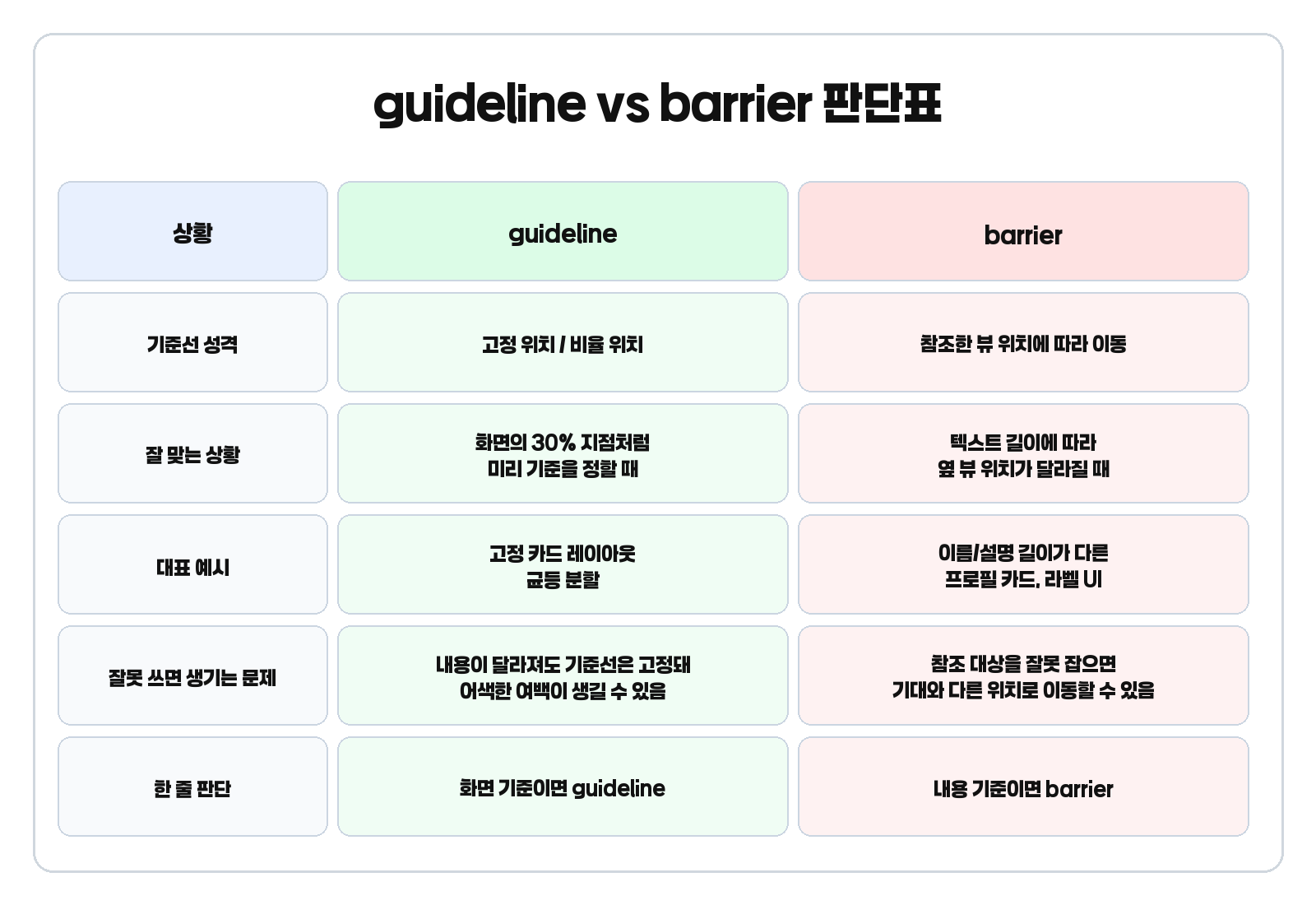
app:layout_constraintGuide_percent="0.35" />guideline은 화면의 30% 지점처럼 미리 기준을 정하고 싶을 때는 좋지만, 이름과 설명 길이가 자주 달라지는 화면에서는 고정 기준선이 오히려 어색함을 만들 수 있습니다.
체크 포인트
- 기준이 고정돼야 하는가
- 아니면 내용 길이에 따라 움직여야 하는가
- 지금 문제는 위치 계산 문제인가, 기준선 선택 문제인가
barrier를 써야 하는데 guideline으로 처리한 경우
증상
- 이름 텍스트가 길어지면 버튼이 겹침
- 설명 텍스트 길이에 따라 오른쪽 요소 배치가 어색함
- 고정 guideline으로는 유연하게 대응되지 않음
guideline으로 처리한 예시
<androidx.constraintlayout.widget.Guideline
    android:id="@+id/guideline"
    android:layout_width="wrap_content"
    android:layout_height="wrap_content"
    android:orientation="vertical"
app:layout_constraintGuide_percent="0.5" />이 방식은 화면 기준 50% 지점은 잘 잡지만, 실제 텍스트 끝 위치와는 상관없이 고정됩니다.
barrier로 수정한 예시
<androidx.constraintlayout.widget.Barrier
    android:id="@+id/textBarrier"
    android:layout_width="wrap_content"
    android:layout_height="wrap_content"
    app:barrierDirection="end"
    app:constraint_referenced_ids="nameText,descriptionText" />

<Button
    android:id="@+id/actionButton"
    android:layout_width="wrap_content"
    android:layout_height="wrap_content"
    android:text="수정"
    app:layout_constraintStart_toEndOf="@id/textBarrier"
app:layout_constraintTop_toTopOf="parent" />이제 버튼은 이름과 설명 중 더 길게 나온 쪽의 끝 다음에 배치됩니다. 즉, 화면 기준이면 guideline, 내용 기준이면 barrier로 이해하면 훨씬 덜 헷갈립니다.
체크 포인트
- 기준이 화면 기준인가, 내용 기준인가
- 텍스트 길이가 자주 달라지는가
- 고정 guideline이 아니라 동적 barrier가 더 자연스러운가
gone 처리 후 간격이 이상해지는 이유
증상
- 보조 텍스트가 없어졌더니 버튼이 너무 위로 붙음
- 뷰가 사라진 뒤 간격이 예상보다 좁아짐
예시
<TextView
    android:id="@+id/subtitle"
    android:layout_width="wrap_content"
    android:layout_height="wrap_content"
    android:text="보조 설명"
    app:layout_constraintTop_toBottomOf="@id/title" />

<Button
    android:id="@+id/actionButton"
    android:layout_width="wrap_content"
    android:layout_height="wrap_content"
    android:text="확인"
    app:layout_constraintTop_toBottomOf="@id/subtitle"
    android:layout_marginTop="16dp"
app:layout_goneMarginTop="24dp" />subtitle이 gone이 되면 일반 margin과 별도로 layout_goneMarginTop을 사용할 수 있습니다. 이 부분을 놓치면 ‘갑자기 너무 붙어 보이는’ 문제가 자주 생깁니다.
체크 포인트
- 대상 뷰가 gone 될 수 있는가
- gone 이후 간격도 별도로 설계했는가
- 지금 보이는 문제가 일반 margin 문제가 아니라 gone margin 문제인가
start/end와 left/right를 섞어서 생기는 문제
증상
- 어떤 뷰는 start/end
- 어떤 뷰는 left/right
- 어떤 곳은 marginStart
- 어떤 곳은 marginLeft
왜 문제일까
공식 API에는 둘 다 존재하지만, 실무 유지보수에서는 혼용 자체가 코드를 더 헷갈리게 만들 수 있습니다. 특히 RTL 대응까지 고려하면 일관된 방향 속성을 쓰는 편이 더 안전합니다.
체크 포인트
- 현재 XML에서 방향 속성이 일관적인가
- start/end 중심으로 정리할 수 있는가
- 문제 원인이 제약 계산 자체가 아니라 혼용으로 인한 해석 혼란은 아닌가
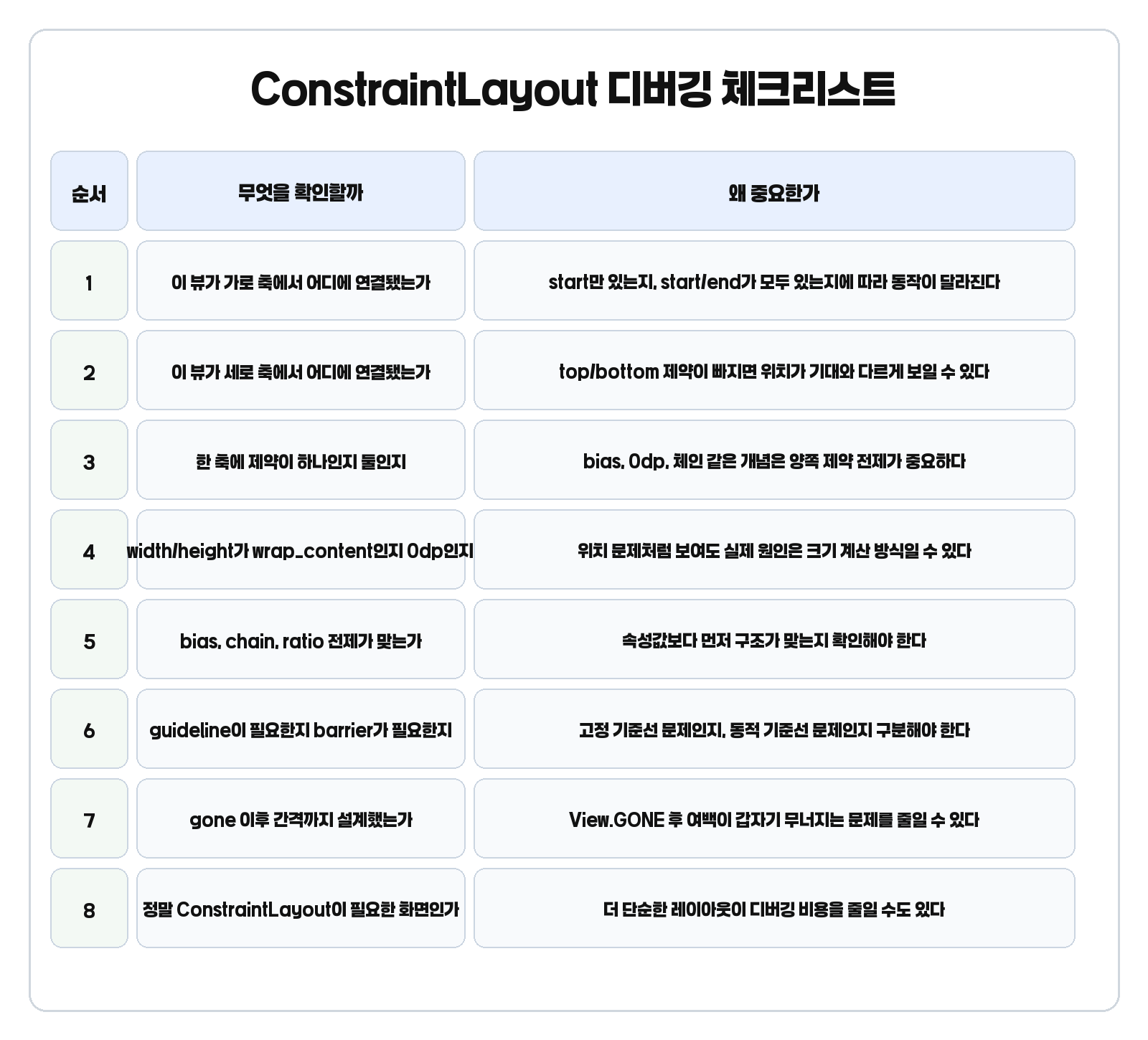
ConstraintLayout 디버깅 체크리스트
- 이 뷰는 가로 축에서 어디에 연결되어 있는가
- 이 뷰는 세로 축에서 어디에 연결되어 있는가
- 한 축에 제약이 하나인지 둘인지
- width와 height가 wrap_content, 고정값, 0dp 중 무엇인지
- bias, chain, ratio가 의미를 가질 전제가 맞는지
- 고정 기준선이 필요한지, 동적 기준선이 필요한지
- gone 이후 간격도 따로 설계했는지
- 지금 이 화면이 정말 ConstraintLayout이 필요한 구조인지
이 체크리스트만 익혀도 문제가 생길 때 무작정 값을 바꾸는 횟수가 확실히 줄어듭니다.
언제는 ConstraintLayout보다 단순 레이아웃이 낫다
- 수직으로 순서대로 쌓기만 하면 되는 화면
- 겹치기 구조만 필요한 화면
- 관계보다 단순 흐름이 더 중요한 화면
이런 경우에는 LinearLayout이나 FrameLayout이 오히려 더 읽기 쉽고, 디버깅 비용도 더 낮을 수 있습니다. 즉, 디버깅이 너무 복잡해진다면 속성을 더 추가하기 전에 레이아웃 선택 자체가 맞는지도 한 번 봐야 합니다.
한 번에 정리
- 0dp는 제약 기반 크기 계산인지 확인한다
- bias는 양쪽 제약이 있는지 확인한다
- chain은 style보다 연결 구조를 먼저 본다
- dimensionRatio는 0dp와 제약 연결을 같이 본다
- guideline과 barrier는 기준선 성격이 다르다
- gone 이후 간격은 gone margin까지 같이 본다
- 복잡하면 레이아웃 선택 자체를 다시 본다
즉, ConstraintLayout 디버깅의 핵심은 속성 암기가 아니라 제약 관계를 읽는 습관입니다.
마무리
ConstraintLayout은 한 번에 이해하기 쉬운 레이아웃은 아닙니다. 하지만 어떤 속성이 어떤 전제에서 의미를 가지는지 알기 시작하면, 막힐 때도 훨씬 덜 당황하게 됩니다. 특히 실무에서는 0dp, bias, chain, dimensionRatio, guideline, barrier, gone margin 같은 포인트가 반복해서 나오기 때문에, 이 기준만 정확히 잡아도 XML 유지보수가 훨씬 수월해집니다.
먼저 개념 자체를 다시 정리하고 싶다면 안드로이드 ConstraintLayout 완전 정리: 자주 헷갈리는 속성과 설정값까지 글을 함께 읽어보는 것도 좋습니다. 관련해서 안드로이드 UI 전반을 더 보고 싶다면 안드로이드 색상 투명도 hex 정리, ViewModel은 왜 필요할까도 함께 읽어보면 좋습니다. 공식 기준은 Android Developers ConstraintLayout 가이드, ConstraintLayout API reference, ConstraintSet API reference를 참고하면 됩니다.


