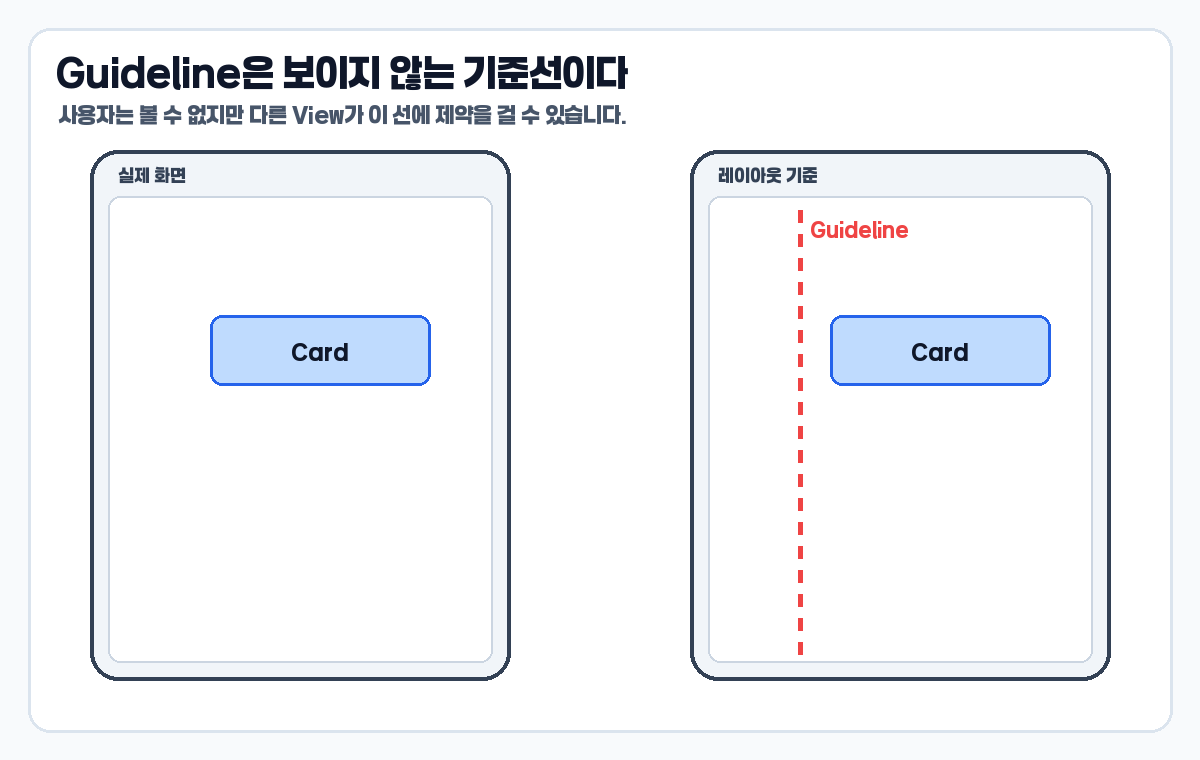
ConstraintLayout Guideline은 화면을 일정 비율로 나누거나 여러 View의 정렬 기준을 공유할 때 유용한 기준선입니다. View처럼 XML에 선언하지만, 사용자가 앱 화면에서 직접 보는 요소는 아닙니다.
이번 글에서는 Guideline을 단순히 “보이지 않는 선”으로만 설명하지 않고, begin, end, percent 기준이 실제 배치에서 어떻게 다른지 예시로 비교합니다. 마지막에는 13편 Barrier와 헷갈리지 않도록 차이도 먼저 정리하겠습니다.
먼저 한 줄로 정리
- Guideline은 다른 View가 붙을 수 있는 보이지 않는 기준선입니다.
begin은 parent 시작 edge에서 떨어진 고정 거리입니다.end는 parent 끝 edge에서 떨어진 고정 거리입니다.percent는 parent 크기 기준 비율 위치입니다.- Guideline은 스스로 위치를 정하고, Barrier는 참조 View 크기에 따라 위치가 움직입니다.
ConstraintLayout Guideline이 필요한 순간
View 하나를 parent에 붙이는 정도라면 Guideline이 꼭 필요하지 않습니다. 하지만 여러 View가 같은 가상의 기준을 공유해야 하거나, 화면을 30:70처럼 나누고 싶다면 Guideline이 훨씬 읽기 쉬운 구조를 만듭니다.
공식 Android Developers 문서는 Guideline을 vertical 또는 horizontal로 추가할 수 있고, dp 단위나 parent edge 기준 percentage로 위치를 정할 수 있다고 설명합니다.
percent Guideline으로 화면을 비율로 나누기
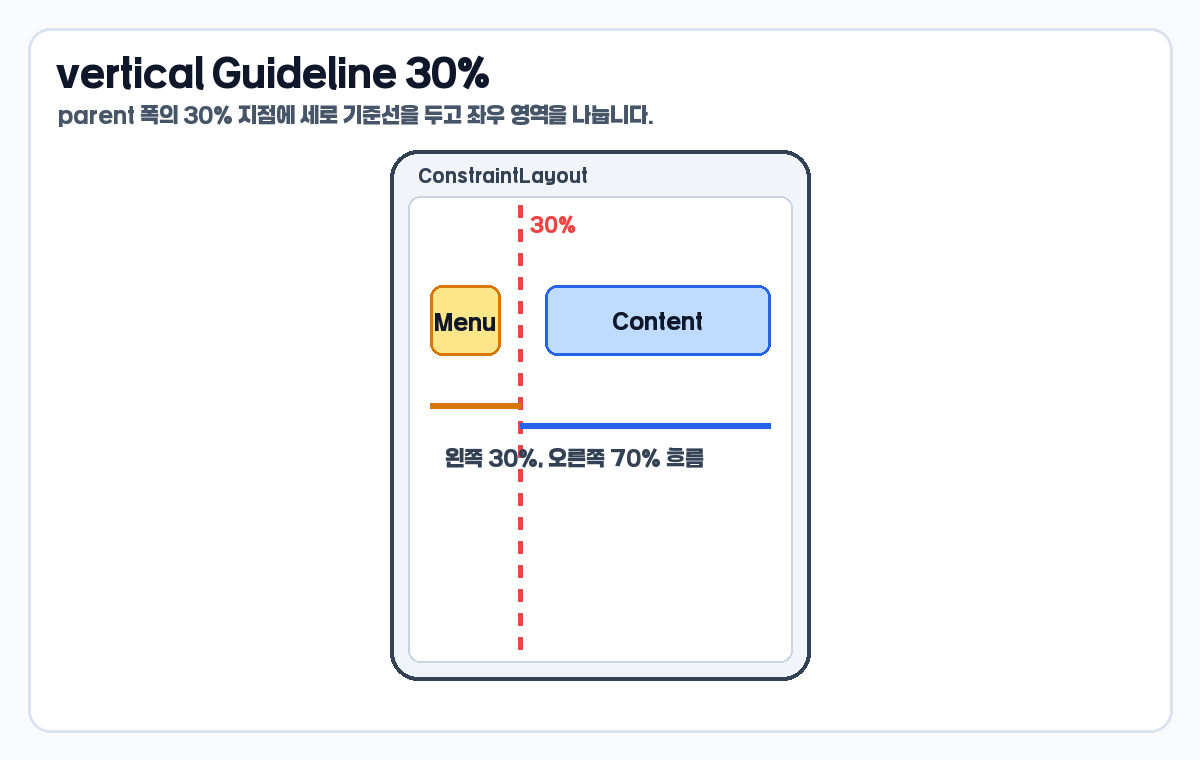
percent Guideline은 화면 크기가 바뀌어도 같은 비율 위치에 기준선을 둡니다. 예를 들어 세로 Guideline을 30%에 두면 왼쪽 메뉴 영역과 오른쪽 콘텐츠 영역을 30:70 흐름으로 나눌 수 있습니다.
<androidx.constraintlayout.widget.Guideline
    android:id="@+id/menuGuideline"
    android:layout_width="wrap_content"
    android:layout_height="wrap_content"
    android:orientation="vertical"
    app:layout_constraintGuide_percent="0.3" />

<TextView
    android:id="@+id/menuTitle"
    android:layout_width="0dp"
    android:layout_height="wrap_content"
    android:text="Menu"
    app:layout_constraintStart_toStartOf="parent"
    app:layout_constraintEnd_toStartOf="@id/menuGuideline"
    app:layout_constraintTop_toTopOf="parent" />

<TextView
    android:id="@+id/contentTitle"
    android:layout_width="0dp"
    android:layout_height="wrap_content"
    android:text="Content"
    app:layout_constraintStart_toEndOf="@id/menuGuideline"
    app:layout_constraintEnd_toEndOf="parent"
app:layout_constraintTop_toTopOf="parent" />이 예시에서 Guideline 자체는 화면에 보이지 않습니다. 하지만 menuTitle과 contentTitle은 이 기준선을 서로 다른 방향의 제약 대상으로 사용합니다.
begin Guideline은 고정 시작 기준선이다
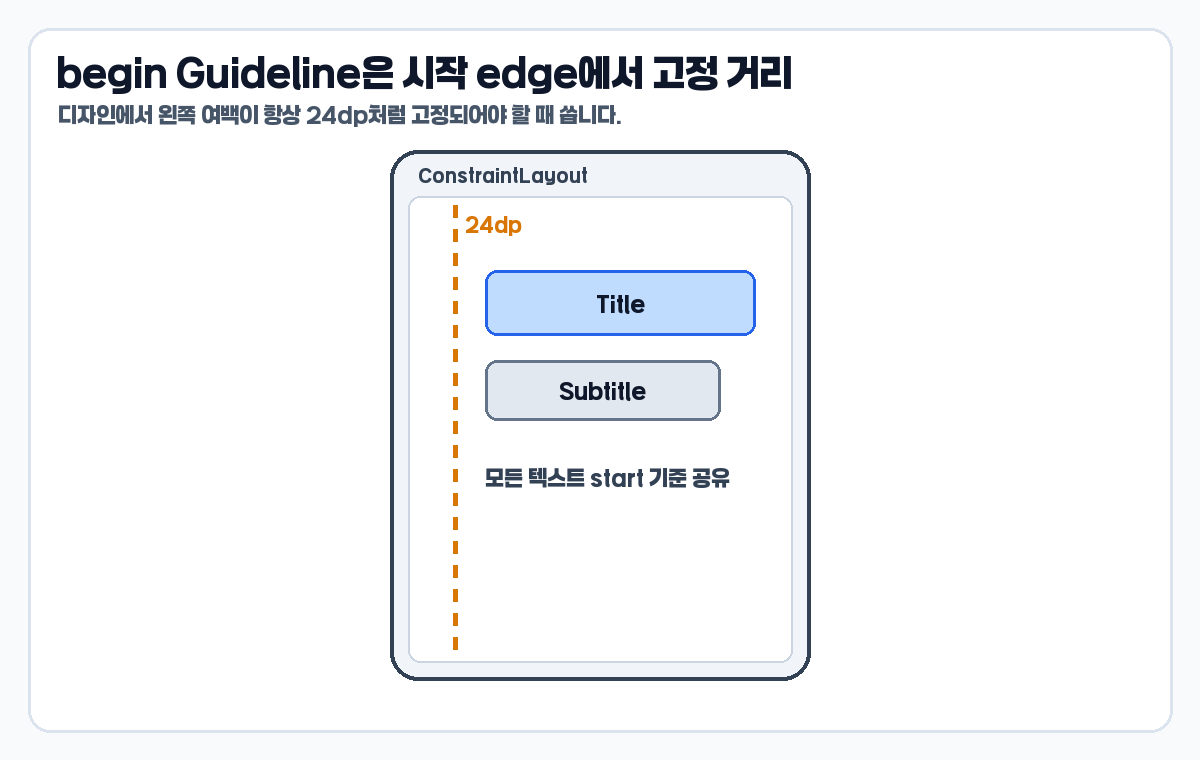
begin Guideline은 parent의 시작 edge에서 일정 dp만큼 떨어진 위치에 기준선을 만듭니다. 예를 들어 모든 텍스트의 시작점을 24dp 지점으로 통일하고 싶을 때 사용할 수 있습니다.
<androidx.constraintlayout.widget.Guideline
    android:id="@+id/textStartGuideline"
    android:layout_width="wrap_content"
    android:layout_height="wrap_content"
    android:orientation="vertical"
    app:layout_constraintGuide_begin="24dp" />

<TextView
    android:id="@+id/titleText"
    android:layout_width="0dp"
    android:layout_height="wrap_content"
    android:text="Title"
    app:layout_constraintStart_toEndOf="@id/textStartGuideline"
    app:layout_constraintEnd_toEndOf="parent"
app:layout_constraintTop_toTopOf="parent" />이 구조는 여러 TextView가 같은 start 기준을 공유해야 할 때 읽기 쉽습니다. 각 View마다 marginStart를 반복해서 넣는 것보다, 기준선 하나를 두고 그 기준에 붙이는 방식이 더 명확할 수 있습니다.
end Guideline은 끝 기준 여백을 공유한다
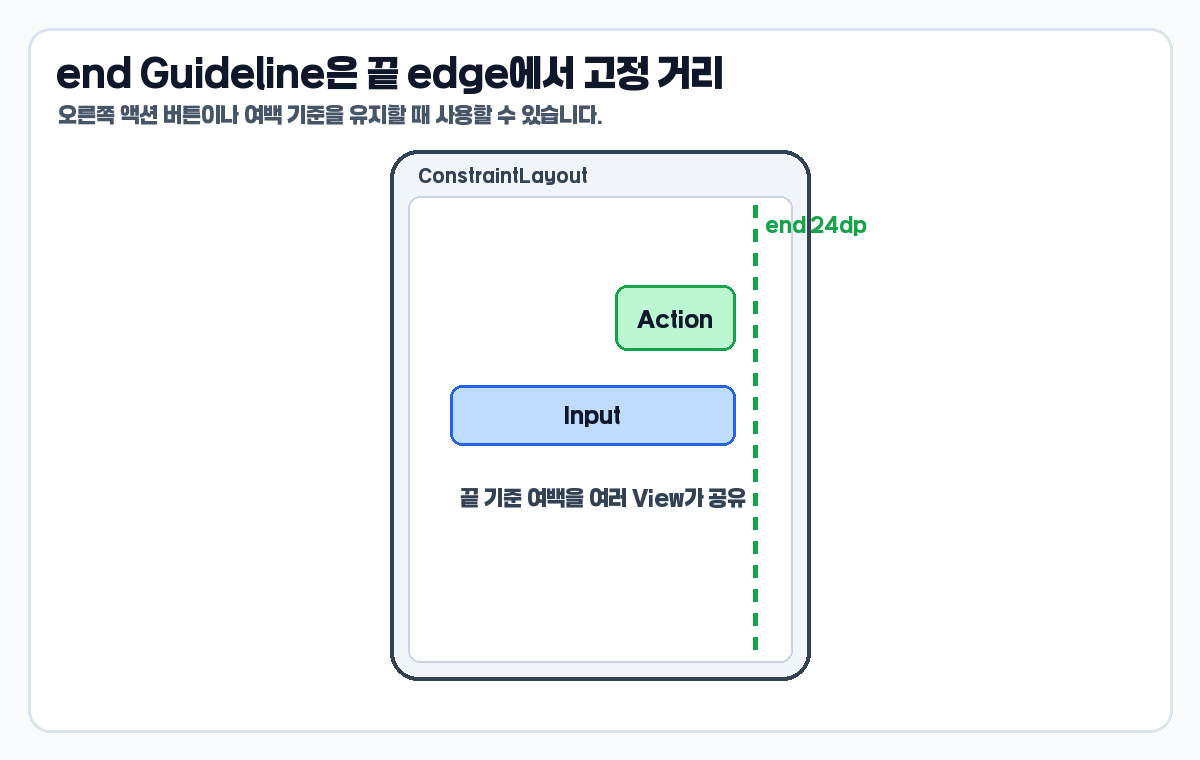
end Guideline은 parent의 끝 edge에서 일정 거리만큼 안쪽에 기준선을 둡니다. 오른쪽 액션 버튼, 입력창 끝선, 카드의 오른쪽 정렬 기준처럼 끝 여백을 여러 View가 공유해야 할 때 유용합니다.
<androidx.constraintlayout.widget.Guideline
    android:id="@+id/actionEndGuideline"
    android:layout_width="wrap_content"
    android:layout_height="wrap_content"
    android:orientation="vertical"
    app:layout_constraintGuide_end="24dp" />

<Button
    android:id="@+id/actionButton"
    android:layout_width="wrap_content"
    android:layout_height="wrap_content"
    android:text="Action"
    app:layout_constraintEnd_toStartOf="@id/actionEndGuideline"
app:layout_constraintTop_toTopOf="parent" />start/end를 쓰는 프로젝트라면 오른쪽이라는 표현보다 끝 edge 기준이라고 이해하는 편이 좋습니다. RTL 환경까지 고려하면 left/right보다 start/end 관점이 더 자연스럽습니다.
horizontal Guideline으로 헤더와 본문 나누기
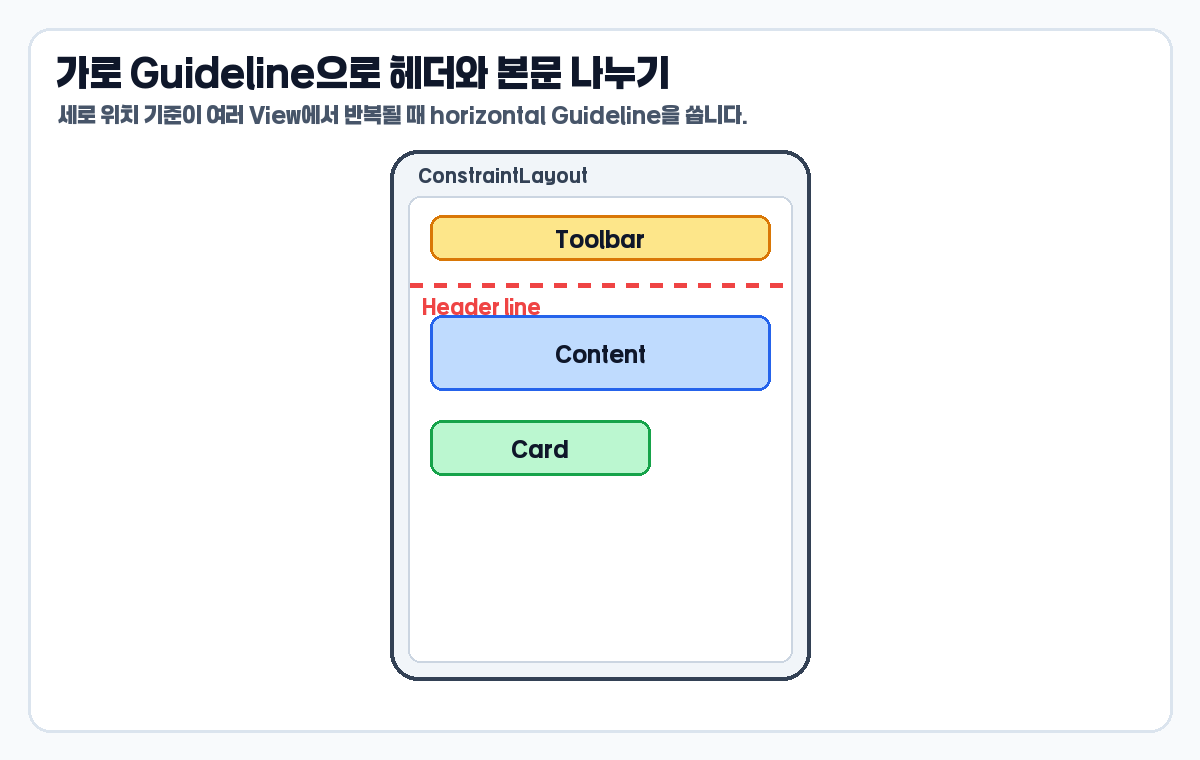
Guideline은 세로선만 있는 것이 아닙니다. android:orientation="horizontal"을 사용하면 가로 기준선을 만들 수 있습니다. Toolbar 아래부터 콘텐츠를 시작하거나, 카드 목록의 시작 위치를 일정하게 맞출 때 사용할 수 있습니다.
<androidx.constraintlayout.widget.Guideline
    android:id="@+id/contentTopGuideline"
    android:layout_width="wrap_content"
    android:layout_height="wrap_content"
    android:orientation="horizontal"
    app:layout_constraintGuide_begin="96dp" />

<RecyclerView
    android:id="@+id/list"
    android:layout_width="0dp"
    android:layout_height="0dp"
    app:layout_constraintTop_toBottomOf="@id/contentTopGuideline"
    app:layout_constraintBottom_toBottomOf="parent"
    app:layout_constraintStart_toStartOf="parent"
app:layout_constraintEnd_toEndOf="parent" />세로 Guideline은 좌우 배치 기준을 만들고, 가로 Guideline은 위아래 배치 기준을 만듭니다. 이름보다 방향과 제약 축을 함께 보는 것이 중요합니다.
이미지와 텍스트 기준 맞추기
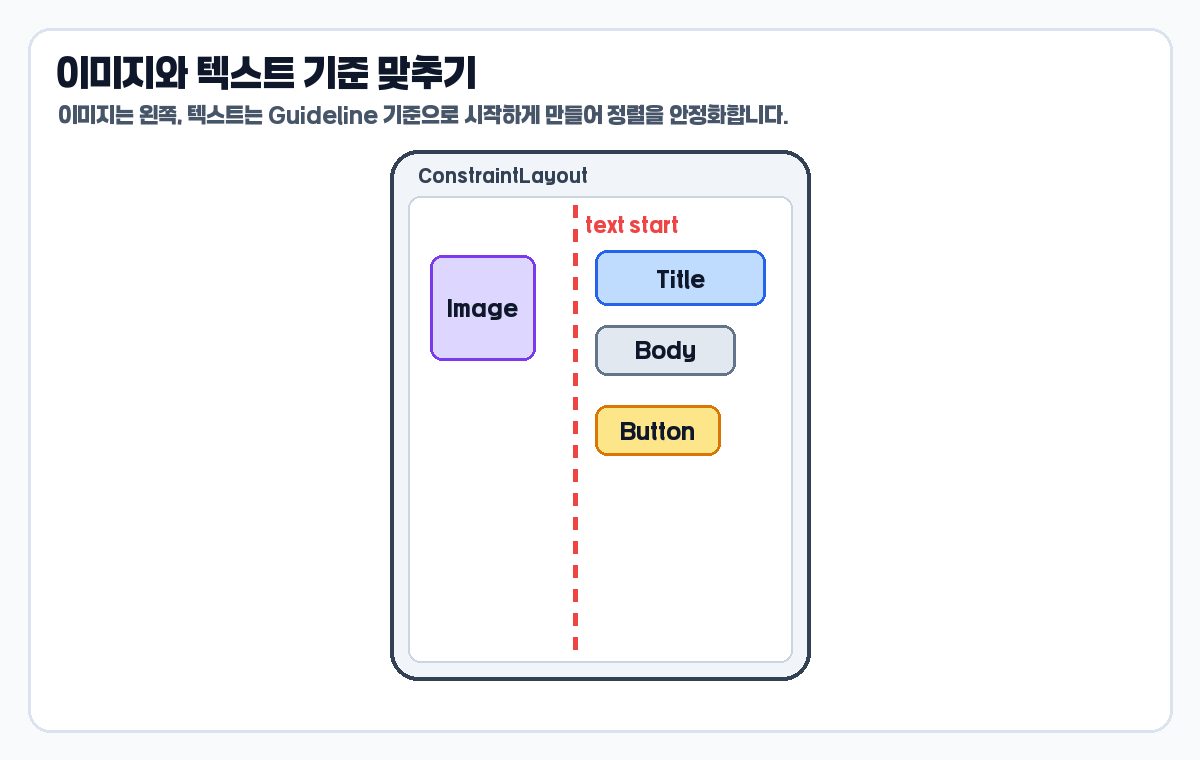
실무 카드 UI에서는 이미지, 제목, 본문, 버튼이 서로 다른 크기를 갖습니다. 이때 텍스트 시작 기준을 Guideline으로 잡아 두면 여러 텍스트 View가 같은 세로선을 공유할 수 있습니다.
이 방식은 특히 리스트 아이템이나 프로필 카드처럼 같은 구조가 반복되는 화면에서 유용합니다. 이미지 크기가 바뀌어도 텍스트 기준선을 Guideline으로 유지하면 레이아웃을 읽기 쉬워집니다.
두 개의 Guideline으로 콘텐츠 영역 만들기
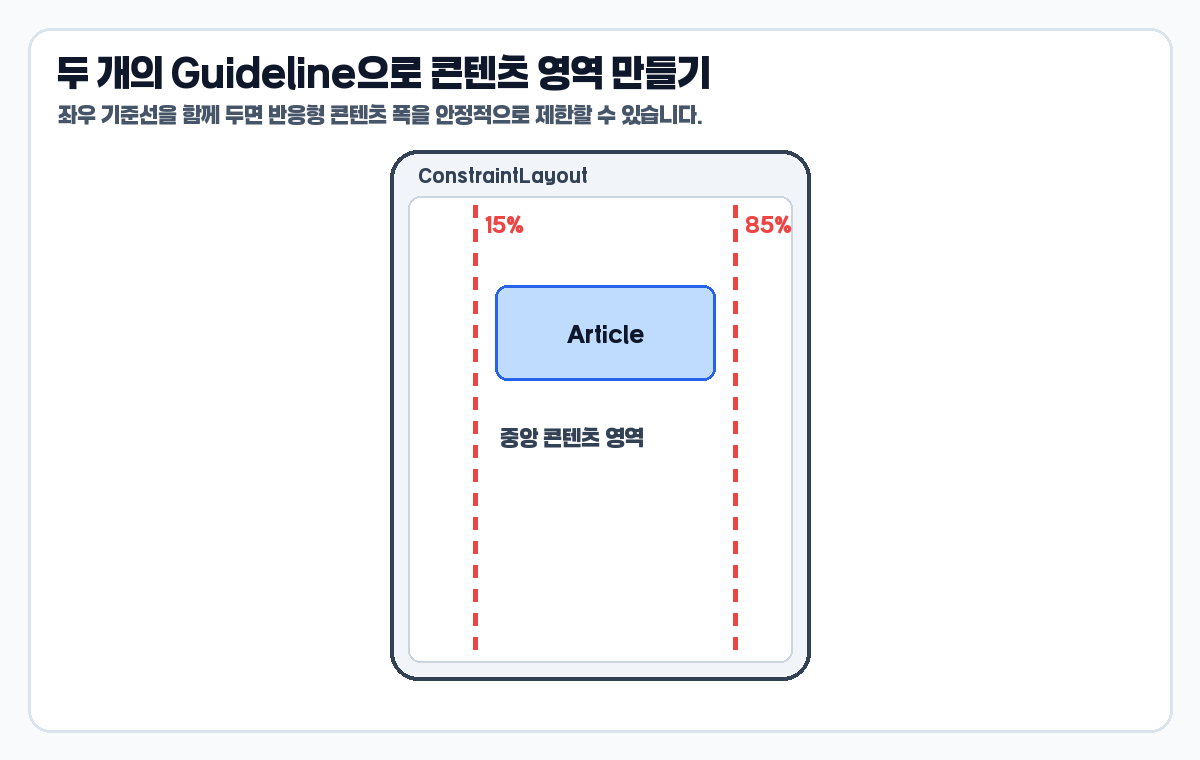
하나의 Guideline만 쓰는 것이 아니라 좌우에 두 개를 둘 수도 있습니다. 예를 들어 15%와 85% 지점에 기준선을 두면 중앙 콘텐츠 영역을 만들 수 있습니다.
<androidx.constraintlayout.widget.Guideline
    android:id="@+id/startContentGuide"
    android:layout_width="wrap_content"
    android:layout_height="wrap_content"
    android:orientation="vertical"
    app:layout_constraintGuide_percent="0.15" />

<androidx.constraintlayout.widget.Guideline
    android:id="@+id/endContentGuide"
    android:layout_width="wrap_content"
    android:layout_height="wrap_content"
    android:orientation="vertical"
    app:layout_constraintGuide_percent="0.85" />

<TextView
    android:id="@+id/articleBody"
    android:layout_width="0dp"
    android:layout_height="wrap_content"
    android:text="Article"
    app:layout_constraintStart_toEndOf="@id/startContentGuide"
    app:layout_constraintEnd_toStartOf="@id/endContentGuide"
app:layout_constraintTop_toTopOf="parent" />이 예시는 태블릿이나 넓은 화면에서 콘텐츠가 너무 넓게 퍼지는 것을 막는 기본 아이디어로 볼 수 있습니다. 다만 모든 반응형 문제를 Guideline만으로 해결하려고 하기보다 min/max, percent, ConstraintSet 같은 다른 도구와 함께 판단해야 합니다.
Guideline과 Barrier는 무엇이 다를까
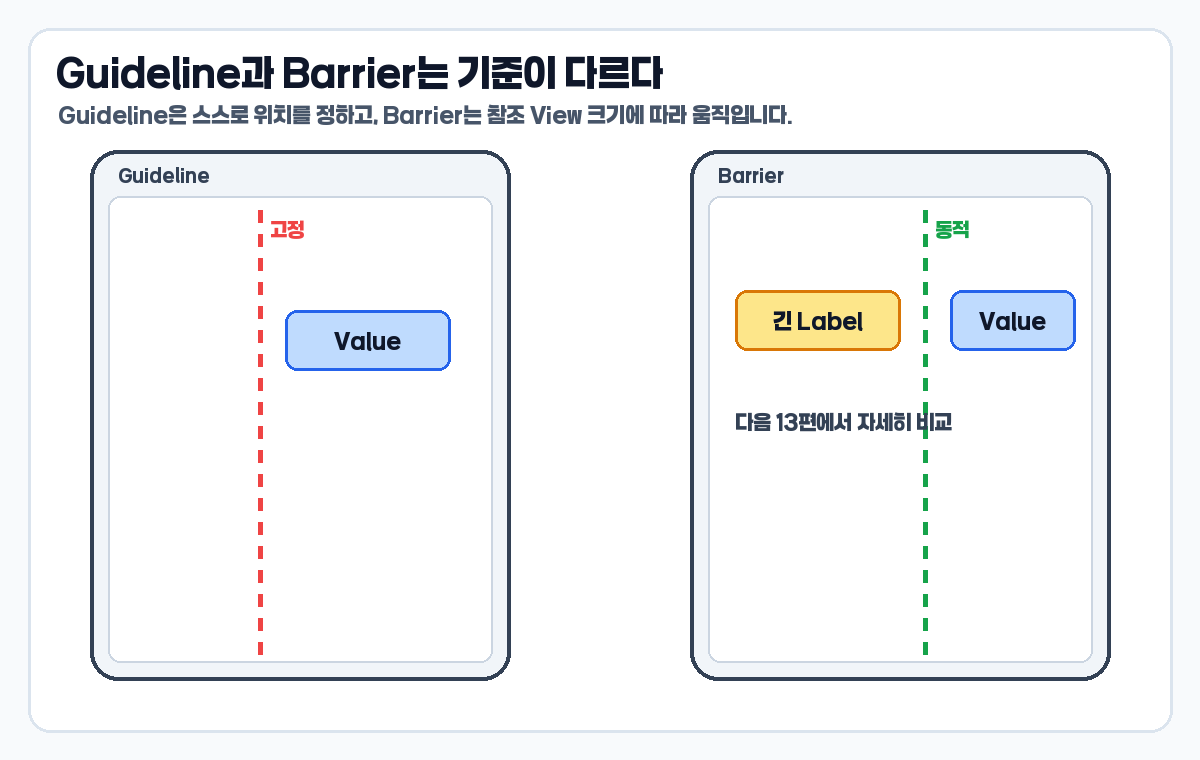
Guideline과 Barrier는 둘 다 보이지 않는 기준선처럼 느껴질 수 있습니다. 하지만 기준선의 성격이 다릅니다. Guideline은 begin, end, percent처럼 스스로 위치를 정합니다. 반면 Barrier는 참조하는 View들의 크기나 위치에 따라 기준선이 움직입니다.
- Guideline: 디자이너가 정한 고정 또는 비율 기준선을 만들 때 적합합니다.
- Barrier: 텍스트 길이처럼 콘텐츠에 따라 기준선이 달라져야 할 때 적합합니다.
- Guideline은 화면 분할, 공통 여백, 정렬 기준에 좋습니다.
- Barrier는 긴 label 뒤에 value나 button을 안전하게 배치할 때 좋습니다.
그래서 12편에서는 Guideline을 고정 기준선으로 이해하고, 13편에서는 Barrier를 동적 기준선으로 이어서 보면 됩니다.
자주 하는 실수
- Guideline을 실제 화면에 보이는 선이라고 생각한다.
- vertical Guideline과 horizontal Guideline의 방향을 반대로 읽는다.
- percent 값을 30이 아니라
0.3처럼 비율 값으로 써야 한다는 점을 놓친다. - 고정 위치가 필요한데 각 View에 margin을 반복해서 넣어 관리가 어려워진다.
- 텍스트 길이에 따라 기준선이 움직여야 하는 상황까지 Guideline으로 해결하려 한다.
한 번에 정리
- ConstraintLayout Guideline은 보이지 않는 기준선이다.
- begin은 시작 edge 기준 고정 거리, end는 끝 edge 기준 고정 거리다.
- percent는 parent 크기 기준 비율 위치다.
- vertical Guideline은 좌우 배치 기준, horizontal Guideline은 위아래 배치 기준으로 읽는다.
- Guideline은 고정 기준선, Barrier는 동적 기준선으로 구분하면 쉽다.
즉, ConstraintLayout Guideline은 View를 직접 꾸미는 기능이 아니라 여러 View가 공유할 수 있는 레이아웃 기준을 만드는 기능입니다.
마무리
Guideline은 화면을 비율로 나누거나 여러 View의 시작 기준을 통일할 때 특히 유용합니다. 단순한 여백 하나에는 margin이 더 간단할 수 있지만, 여러 View가 같은 기준선을 공유해야 한다면 Guideline이 XML 구조를 더 명확하게 만듭니다.
공식 기준은 Android Developers ConstraintLayout 가이드와 AndroidX ConstraintLayout Guideline 레퍼런스를 확인했습니다. 다음 13편에서는 Guideline으로 해결하기 어려운 동적 텍스트 기준 문제를 Barrier로 처리하는 방법을 이어서 보겠습니다.
Android ConstraintLayout 완전 정리 이전 글 모음
Android ConstraintLayout 완전 정리 (1) – ConstraintLayout 기본 사용법: LinearLayout과 다른 제약 기반 배치 이해하기
Android ConstraintLayout 완전 정리 (3) – ConstraintLayout goneMargin과 margin 차이: View.GONE일 때 간격이 바뀌는 이유
Android ConstraintLayout 완전 정리 (5) – ConstraintLayout match_constraint 완전 정리: 0dp가 남은 공간을 채우는 원리
Android ConstraintLayout 완전 정리 (7) – ConstraintLayout baseline 정렬: TextView 글자 기준선을 맞추는 방법
Android ConstraintLayout 완전 정리 (8) – ConstraintLayout dimensionRatio 사용법: 1:1, 16:9 이미지 비율 맞추기
Android ConstraintLayout 완전 정리 (9) – ConstraintLayout percent min max 크기 정리: 화면 크기에 맞게 View 조절하기
Android ConstraintLayout 완전 정리 (10) – ConstraintLayout chain 사용법: spread, spread_inside, packed 차이
Android ConstraintLayout 완전 정리 (11) – ConstraintLayout chain weight와 bias: 같은 폭, 다른 비율 배치 만들기


